UPDATE 3: If you are running Android 2.1 please
see these instructions for root instead
UPDATE 2: Refer to
this post for a SIMPLER root for your Android 1.6 Mini X10
UPDATE 1: I have cleaned up the instructions + formatting
First and foremost, full credit to exploid and
source.
If you have struggled to follow the steps found elsewhere then I am writing up these altered version of the steps with you in mind, hopefully you can smoothly ROOT your Mini Pro now.
Please follow each step carefully. These steps are to be carried out on a Windows XP, 2000, Vista or 7 computer (32/64 bit).
Note: You are advised to have about 50% charge on the battery minimum, ideally much higher if not fully charged.
- Download exploid_x10mini.zip
a. Extract the ZIP file contents to C:\exploid_x10mini
- Download the Android SDK here
a. Open up the downloaded file and browse inside it to android-sdk-windows\tools\ -- now extract the entire contents of this folder to C:\exploid_x10mini
IMPORTANT: Make sure the files have extracted properly, sometimes you may accidently end up extracting them to C:\exploid_x10mini\android-sdk-windows\tools\ - if this happens go in to C:\exploid_x10mini\android-sdk-windows\tools\ and move the entire contents to C:\exploid_x10mini\
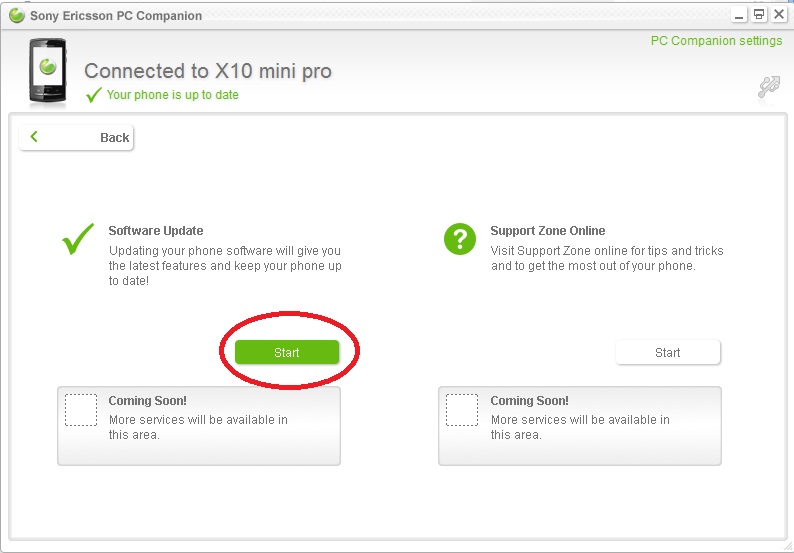
- Download the Sony Ericsson PC Companion – do NOT plug the USB cable to your Mini Pro when it prompts
- On your Xperia Mini you need to enable USB Debugging:
a. Go to Settings > Applications > Development
b. Tick to enable: USB Debugging
c. Tick to enable: Stay awake
- You need the Power Control Widget enabled on a home screen for a later step, doing this now is best:
a. On the Home Screen press the Menu button (left button)
b. Select on Arrange Widgets
c. Find and select Power Control
d. Press the Back button to return to the home screen, you should be on the page displaying the widget
e. On this widget do a quick test, touch the left icon for wifi to enable/disable it to make sure it is working
f. ALTERNATIVE: Download a WIFI on/off widget and use that instead for the later stepg.
IMPORTANT: Leave the WIFI turned ON – doesn’t matter if you are connected to an AP or not
- Plug the USB cable between computer and the Mini Pro. Windows should show a driver installation notification but ignore the state of the Sony Ericsson PC Companion, leave it running in the background
- Click on START and type CMD and press Enter. Alternatively Press the FLAG button + R and type CMD and press Enter.
- At the CMD command line type in all the RED TEXT as displayed below, the text in white should be similar to what you see happening after you type the red text and press Enter.
C:
cd c:\exploid_x10mini
C:\exploid_x10mini>adb push Superuser.apk /sdcard/Superuser.apk
* daemon not running. starting it now *
* daemon started successfully *
315 KB/s (38823 bytes in 0.120s) C:\exploid_x10mini>adb push su /sdcard/su
1080 KB/s (22120 bytes in 0.020s) C:\exploid_x10mini>adb push exploid /sqlite_stmt_journals/exploid
1049 KB/s (9672 bytes in 0.009s) C:\exploid_x10mini>adb push busybox /sqlite_stmt_journals/busybox
1901 KB/s (1709832 bytes in 0.878s) C:\exploid_x10mini>adb shell
$ cd sqlite_stmt_journals
cd sqlite_stmt_journals
$ chmod 755 exploid
chmod 755 exploid
$ chmod 755 busybox
chmod 755 busybox |
IMPORTANT: Immediately after the next command, you will need to disable and enable the wi-fi using the power control widget (from step 5) on the phone
$ ./exploid
./exploid
[*] Android local root exploid (C) The Android Exploid Crew
[*] Modified by birdman for the DroidX
[+] Using basedir=/sqlite_stmt_journals, path=/sqlite_stmt_journals/exploid
[+] opening NETLINK_KOBJECT_UEVENT socket
[+] sending add message ...
[*] Try to invoke hotplug now, clicking at the wireless
[*] settings, plugin USB key etc.
[*] You succeeded if you find /system/bin/rootshell.
[*] GUI might hang/restart meanwhile so be patient. |
Now turn Wifi OFF and back ON
- Now type in rootshell and press Enter
a. Enter this password rootnowb. The prompt will change to # … you now have ROOT!
- Type the following commands, pressing Enter on the keyboard after each line:
./busybox cp /sdcard/Superuser.apk /system/app/
./busybox cp /sdcard/su /system/bin/
./busybox cp busybox /system/bin/
chmod 4755 /system/bin/su
rm /system/bin/rootshell
- Type exit – this will exit out of rootshell
- Type exit again – this will exit out of adb shell
Your device is now rooted but lets verify this now:
- Type in adb shell and press Enter
- Type in su and press Enter – look at your Xperia Mini Pro screen – Superuser.apk should run on the phone and will ask whether to allow the root permission.Feel free to leave questions in comments if you get stuck or do not understand any of the steps.